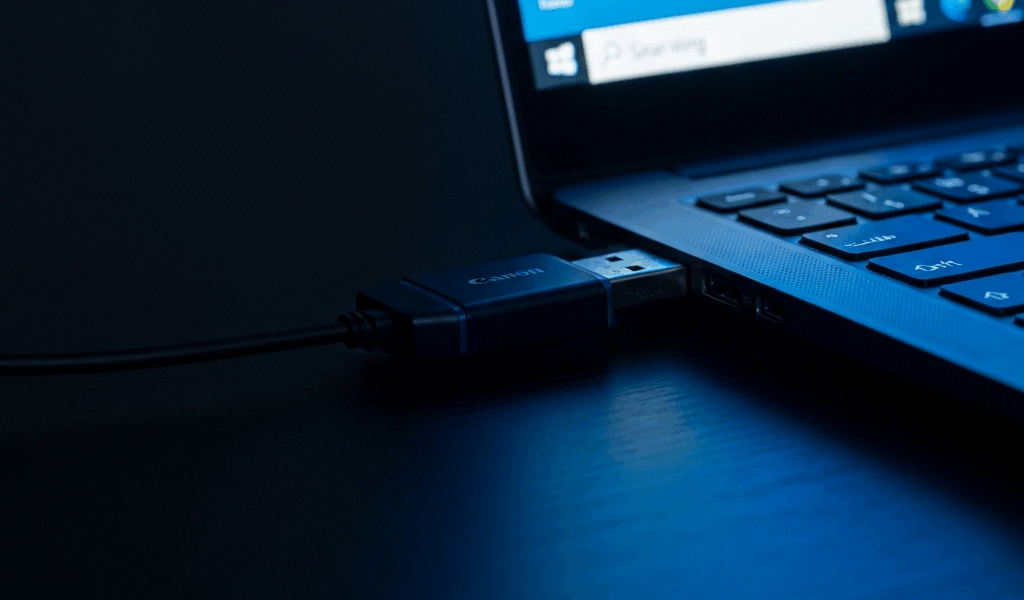
Fast diagnosis: Plug the CAC reader directly into the Windows 11 computer, open Device Manager, and check whether it appears under Smart card readers. Then insert the CAC and run certutil -scinfo in Command Prompt. Those two checks separate a USB/driver problem from a card, certificate or website problem before you change anything.
Do not disable driver-signature enforcement, install drivers from download mirrors, delete certificate containers or remove Windows updates as a routine first step. On a government-managed computer, stop before any change that requires administrator rights and use your help desk’s approved process.
Match the symptom to the right layer
| What you see | Likely layer | Start here |
|---|---|---|
| No reader in Device Manager | USB connection, reader hardware or driver enumeration | Direct USB connection, another port, another computer |
| Reader appears, but no card is reported | Card seating, card contacts, card failure or smart-card service | Reseat the CAC, test another card/reader, run certutil -scinfo |
| Card and certificates appear, but a website fails | Certificate choice, trust chain, browser state or the website | Test another CAC-enabled site and check DoD trust |
| Windows sign-in fails but websites work | Managed account, domain policy or logon certificate | Contact the organization’s IT support |
1. Connect the reader directly
- Remove the CAC from the reader.
- Disconnect the reader from any dock, monitor, keyboard or unpowered hub.
- Connect it directly to another USB port on the computer.
- Wait for Windows to finish detecting the device, then insert the CAC fully.
If a USB-C adapter is required, test another known-good adapter. A reader that works on another computer points to the original computer or its configuration. A reader that fails on multiple computers may be defective. A CAC that fails in multiple known-good readers may need card-office or help-desk attention.
2. Check Device Manager
Right-click Start and select Device Manager. Expand Smart card readers. The reader may appear by manufacturer/model or as a Microsoft USB smart-card reader. If it is absent, also look under Other devices and Universal Serial Bus controllers for an unknown device or warning icon.
- Reader listed without a warning: Windows sees the reader. Continue to the card test.
- Warning icon or error code: Record the exact device name and code before changing the driver.
- Nothing changes when unplugged and reconnected: test the port, adapter and reader on another system.
Use Windows Update and the reader manufacturer’s official support site for drivers. Do not assume every SCR3310-branded device uses an “Alcor” package, and do not install an unsigned package just because a forum says it worked. HID and Identiv maintain support/download resources for their own products; match the exact model and hardware revision.
3. Test Windows smart-card detection with Certutil
Open Command Prompt and run:
certutil -scinfoMicrosoft documents -scinfo as the Certutil option that displays smart-card information. You do not need to enter a PIN merely to list available certificates; if prompted during this diagnostic, press Esc rather than entering it into an unexpected prompt.
Read the result by layer:
- No readers: return to the USB, Device Manager and service checks.
- Reader present, no card: reseat the card and cross-test the CAC and reader.
- Reader, card and certificates listed: the hardware path works; troubleshoot certificate trust, browser selection or the specific website.
Do not use Certutil’s key- or container-deletion options as a generic repair. Microsoft warns that deleting a smart-card certificate deletes its container. That is an administrator-level action for a diagnosed problem, not a first-line reader fix.
4. Check the Smart Card service without forcing startup settings
Press Windows+R, enter services.msc, and locate Smart Card. If it is stopped, try starting it and rerun certutil -scinfo. If it will not start, record the error and contact support.
Do not blindly change Smart Card, Smart Card Device Enumeration or Smart Card Removal Policy to Automatic. Windows and organizational policy determine how these services start, and the removal-policy service has a different purpose from ordinary reader detection. On a managed device, local changes may be prohibited or reverted.
For a deeper service-specific walkthrough, use the Windows Smart Card service guide.
5. Update or reinstall only the identified reader
If Device Manager shows a reader error, first select Update driver and let Windows search its approved sources. If the model requires a vendor package, download it only from the manufacturer’s official support channel and verify that it supports your Windows version and exact model.
A device uninstall can be appropriate when Windows has a corrupted device instance, but deleting the driver package is a more consequential step. Confirm that an approved replacement is available first. After uninstalling the identified reader, disconnect it, restart Windows if requested, and reconnect it directly.
Avoid Safe Mode driver installation and disabling driver-signature enforcement. Those actions weaken an important Windows trust control and are particularly inappropriate on government-managed systems.
6. Separate reader detection from CAC certificate problems
A reader can work while a CAC or certificate fails. If certutil -scinfo lists the reader but cannot read the card, inspect the chip for obvious damage and wipe it gently with a clean, dry microfiber cloth. Do not use abrasives or liquid cleaners. Cross-test with a known-good reader or another CAC if policy permits.
If Certutil lists the CAC certificates but a browser does not offer them, restart the browser after inserting the card and test another official CAC-enabled site. One site failing while another works usually indicates a site, cached-selection or certificate-choice issue—not a dead reader.
7. Verify DoD certificate trust from the official source
Reader detection and website trust are separate. Missing DoD roots may cause certificate warnings or authentication failures after Windows can already read the CAC. Obtain InstallRoot and current DoD PKI material from the DoD Cyber Exchange PKI/PKE end-user resources, or use your organization’s managed software center.
Do not download DoD roots or middleware from an unrelated third-party site. On managed equipment, follow organizational instructions because administrators may deploy trust and middleware centrally.
8. Do you need ActivClient?
Do not install ActivClient merely because a reader is not detected. Reader enumeration occurs below the website/middleware layer, and modern Windows includes smart-card components. Some organizations, cards or workflows still require approved middleware; others do not.
Follow the organization’s requirement and obtain licensed software through its approved channel. Never search for an unofficial “free ActivClient download.” See the ActivClient versus native Windows smart-card guide for the decision points.
9. Managed government computer boundaries
On a managed device, contact the help desk before changing drivers, services, Group Policy, the registry, certificate stores, BIOS/firmware or Windows updates. Give support precise evidence:
- Windows version and recent update timing;
- reader manufacturer and exact model;
- Device Manager category and error code;
- whether
certutil -scinfosees a reader, card and certificates; - whether the same reader/CAC works on another approved computer; and
- whether all CAC sites fail or only one.
This is more actionable than “my CAC does not work” and avoids destructive trial-and-error.
Quick decision tree
- No Device Manager entry: direct port → another port/adapter → another computer → approved driver/vendor support.
- Reader entry, no card in Certutil: reseat → dry-clean contacts → cross-test card and reader → help desk/card office.
- Certificates visible in Certutil: test another site → verify DoD trust → restart browser and choose the authentication certificate.
- Only managed sign-in fails: stop and contact organizational IT with the diagnostic evidence.
For a guided cross-platform workflow, use the interactive CAC Reader Troubleshooter.
Frequently asked questions
Why is my CAC reader not showing in Windows 11?
The failure is likely at the USB, hardware or driver-enumeration layer. Connect directly, inspect Device Manager, cross-test the port and reader, and install only an approved driver for the exact model.
How do I know whether Windows sees my CAC?
Run certutil -scinfo. If it lists the reader, card and certificates, Windows can communicate with the CAC and the remaining issue is likely above the hardware layer.
Should the Smart Card service be set to Automatic?
Do not force a startup type as a universal fix. Confirm whether the service can start, then respect Windows defaults and organizational policy.
Should I uninstall a Windows update?
Not as a first-line fix. Isolate the failure and review Microsoft’s release-health information for the exact Windows build. Managed-device update changes belong with organizational IT.
Official resources
- Microsoft: Smart Card Troubleshooting
- Microsoft: Certutil command reference
- Microsoft: Smart Card tools and settings
- DoD Cyber Exchange: PKI/PKE end-user resources
- HID Global: official product support
- Identiv: official product support
For the full start-to-finish flow beyond Windows reader diagnosis, use the complete CAC setup guide to verify the card, DoD trust, middleware requirement and browser layer in order.
If Windows detects the reader but authentication fails only in Mozilla, continue with the Firefox CAC and certificate troubleshooting guide.
If the current reader is unsupported or physically failing, compare replacements with the CAC reader compatibility and buying guide rather than relying on marketplace labels.




Stay in the loop
Get the latest cac setup.com updates delivered to your inbox.