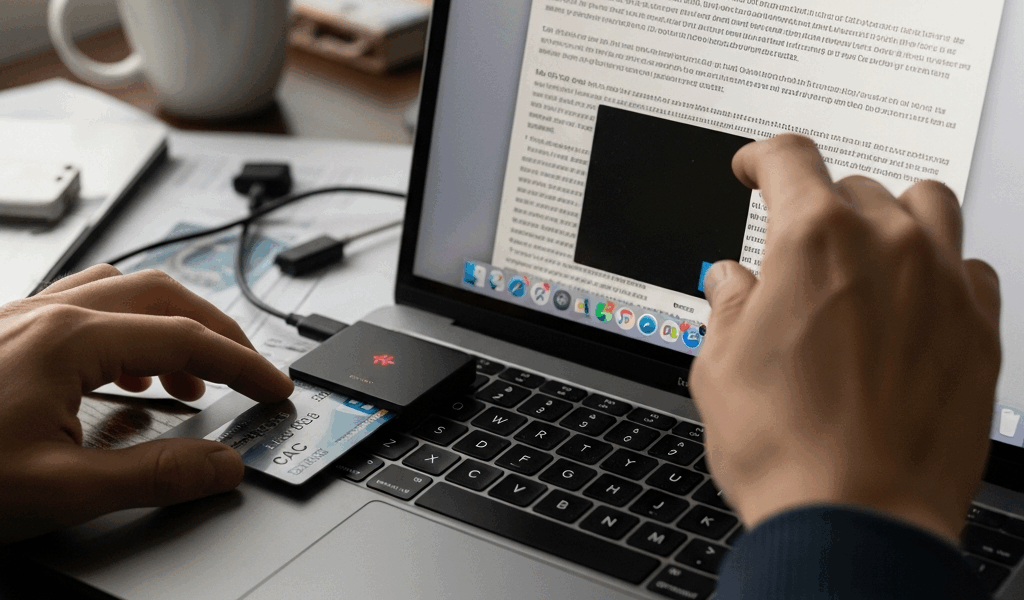
CAC Reader on Mac Not Working — macOS Fix Guide
If your CAC reader on Mac is not working, you are not alone — and the fix is almost never obvious. I spent three days troubleshooting a Identiv SCR3500A reader on a MacBook Pro running Sonoma before I finally got it talking to my CAC correctly. The Apple Community forums had seventeen different threads on the topic, each one contradicting the last. This guide cuts through that noise with specific steps organized by macOS version and chip architecture, because what fixes the problem on Ventura will not necessarily fix it on Sonoma, and M1 Macs have their own separate issue entirely.
Before anything else, confirm the basics. Open System Information (hold Option, click the Apple menu, select System Information), navigate to USB, and check whether your reader even appears in the device tree. If it does not show up there at all, the problem is hardware or cable — not software. If it does show up but macOS still will not read your card, keep reading.
macOS Sonoma USB-C Reader Fix
Sonoma introduced changes to how macOS handles USB smart card drivers, and this is where most people hit a wall in 2024. Apple deprecated the older CCID driver stack in macOS 14, which broke compatibility with a wide range of readers — including popular models like the HID Omnikey 3121, the SCM SCR331, and several CAC-specific readers that were working fine on Monterey the week before.
Here is what actually broke: macOS Sonoma requires that smart card readers use Apple’s native CryptoTokenKit framework. Older readers relying on third-party CCID drivers no longer load those drivers automatically. The reader shows up in System Information, the green light blinks, and then absolutely nothing happens in Smart Card Utility or Common Access Card applications.
Check for a Firmware or Driver Update First
Go to the manufacturer’s website directly. Do not use the disc that came in the box — that software is almost certainly outdated. For Identiv readers, the current macOS 14-compatible driver package as of early 2025 is available at identiv.com and installs cleanly. HID Global has a similar update at hidglobal.com for Omnikey series readers. Download the .pkg file, install it, and restart before testing again.
USB-C Adapter Interference
Frustrated by a reader that worked on my old Intel MacBook but failed on my M2 Pro, I eventually figured out the USB-C hub was the actual culprit. Not the reader. Not the driver. A cheap $14 USB-C to USB-A hub from Amazon was silently dropping the reader’s handshake. Plugging the reader directly into a Satechi Slim USB-C hub (model ST-HCU3M, around $49) fixed it immediately. If you are using a third-party hub or dock, try plugging the reader directly into the Mac or into a powered hub instead.
Probably should have opened with this section, honestly — it would have saved me two of those three days.
Install DoD Certificates on Mac
Even when the reader hardware works, the CAC authentication fails if your Mac does not have the Department of Defense root certificates installed. This is a separate problem from the reader driver issue, and it trips up people who have successfully used CAC on Windows without ever thinking about certificates.
Download the Certificate Bundle
The official source is militarycac.com. Navigate to the Mac section and download the AllCerts.zip bundle — it contains the full chain of DoD root and intermediate certificates. The bundle as of 2025 includes certificates from DoD Root CA 2 through DoD Root CA 6, plus the intermediate CAs. Do not grab individual certificates from random government pages; the complete bundle from that site is curated and current.
Import Using Keychain Access
- Open Keychain Access (Applications → Utilities → Keychain Access).
- From the menu bar, go to File → Import Items.
- Navigate to the extracted AllCerts folder and select all the .cer files — you can Command+A to select everything at once.
- When prompted, import them into the System keychain, not the login keychain. This is important. Certificates in the login keychain will not be trusted system-wide.
- After importing, search for “DoD Root” in Keychain Access. Each certificate will likely show as “not trusted” with a red X.
- Double-click each DoD Root CA certificate, expand the Trust section, and set “When using this certificate” to “Always Trust.”
You will need to enter your administrator password for each trust change. There are roughly six root certificates to update. It takes about four minutes total. Once done, restart the browser or application you are using for CAC authentication — trust settings do not apply retroactively to open sessions.
Safari Versus Chrome on macOS
Safari uses the system Keychain directly and tends to work better for CAC-authenticated government sites on Mac. Chrome requires an additional configuration step involving the chrome://settings/certificates page and sometimes still fails with certain CAC-protected sites due to how it handles client certificate selection. If a site works in Safari but not Chrome, the certificate installation worked — Chrome just has its own issues with smart card forwarding on macOS.
Smart Card Pane Not Showing CAC
Some Macs running macOS 13 or 14 simply never display the Smart Card option in System Settings, even with a reader connected and a card inserted. The smart card daemon — screend — is not running or has been disabled. Terminal fixes this.
Enable the Smart Card Daemon
Open Terminal (Applications → Utilities → Terminal) and run these commands one at a time:
sudo sc_auth identitiesThis checks whether macOS can see any smart card identities at all. If it returns nothing, the daemon is not running.
sudo launchctl load /System/Library/LaunchDaemons/com.apple.CryptoTokenKit.smartcard.plistIf that throws an error saying the plist is already loaded, try unloading and reloading it:
sudo launchctl unload /System/Library/LaunchDaemons/com.apple.CryptoTokenKit.smartcard.plist
sudo launchctl load /System/Library/LaunchDaemons/com.apple.CryptoTokenKit.smartcard.plist
After running those, remove and reinsert the CAC. Run sudo sc_auth identities again. If it now returns a hash and an identity string, the daemon is running and macOS recognizes the card.
Check System Integrity Protection Interference
On managed Macs — issued by a government agency or contractor — Mobile Device Management profiles sometimes explicitly block smart card pairing. Go to System Settings → Privacy & Security → Profiles. If you see a profile with restrictions on smart card use, you cannot override it without administrator credentials from the issuing organization. That is a call to your IT help desk, not a Terminal fix.
M1 M2 M3 Mac Specific Issues
Apple Silicon Macs have a distinct problem that Intel Macs never had: Rosetta 2 does not help with kernel-level drivers. Any CAC middleware that shipped as a 32-bit or Intel-only binary simply does not run on M1, M2, or M3 chips. Period. Several older government-issued CAC utilities fall into exactly this category.
CACKey — The ARM-Compatible Solution
Built specifically as a replacement for the older CoolKey and OpenSC middleware, CACKey is the solution that actually works on Apple Silicon. The project is maintained at cackey.dss.mil and the current package — version 0.7.5 as of this writing — ships as a universal binary that runs natively on ARM.
Download the .pkg from the official DSS site. Install it. The package drops a PKCS#11 module at /usr/lib/pkcs11/cackey.dylib. For Firefox (which does not use the system keychain and needs manual configuration), you then need to go to Firefox → Settings → Privacy & Security → Security Devices → Load, and point it to that .dylib file. Name the device something identifiable, like “CACKey DoD.”
OpenSC as an Alternative
OpenSC also ships ARM-native builds. The installation via Homebrew is straightforward:
brew install openscAfter installation, the PKCS#11 module lives at /opt/homebrew/lib/opensc-pkcs11.so. The same Firefox Security Devices path applies if you are loading it manually. OpenSC works well for PIV cards and standard CAC configurations, though I have seen it struggle occasionally with older CACs that have non-standard applet configurations — CACKey handled those better in my testing.
Verify Architecture of Installed Middleware
Burned by this once on an M2 MacBook Air after installing what I thought was the correct package, I now always verify architecture before assuming the install failed. Open Terminal and run:
file /usr/lib/pkcs11/cackey.dylibThe output should include arm64. If it only shows x86_64, you have the wrong build and it will not work on Apple Silicon regardless of what else you do.
Getting a CAC reader working on a Mac takes more steps than it should. The hardware, the driver, the certificates, the daemon, and the middleware all have to align. Fix one layer and another breaks. But each of these problems has a specific, testable solution — and now you have all of them in one place.




Stay in the loop
Get the latest cac setup.com updates delivered to your inbox.