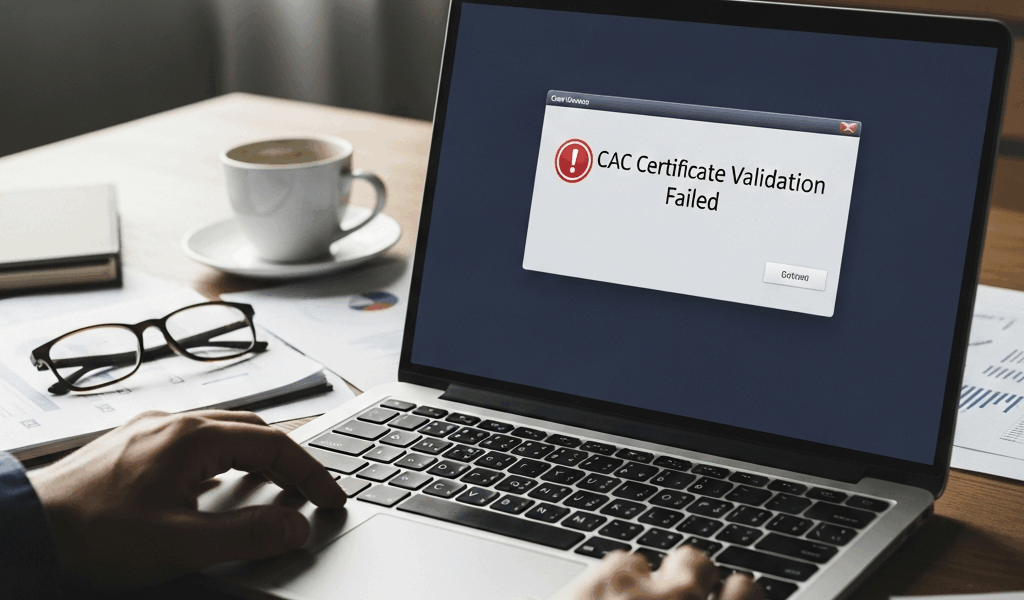
Quick answer: “Certificate validation failed” does not automatically mean your CAC is damaged or the Windows certificate store is corrupt. First identify whether the failure is the computer clock, an expired or revoked CAC certificate, a missing DoD trust anchor, a browser-specific trust store, an unavailable revocation check, or a single portal rejecting the selected certificate. Preserve the evidence and change one layer at a time.
This guide is for authorized CAC users on personally controlled or organization-approved computers. On a government-furnished or centrally managed device, do not rebuild certificate stores, alter policy, install roots, or run repair commands unless your help desk authorizes the exact action.
What certificate validation actually checks
A CAC contains client certificates and private keys used to identify you. The application must build a valid chain from the presented certificate through one or more issuing certification authorities to a trusted root. It may also verify the certificate’s validity dates, intended use and revocation status. Separately, the website presents its own TLS server certificate. A browser warning before CAC selection can therefore be a website-trust failure rather than a problem with the certificate on your card.
| Evidence | Most likely layer | Safe next step |
|---|---|---|
| Warning appears before a CAC certificate chooser | Website TLS chain or local trust | Record the exact browser error and test the approved portal URL |
| No client certificate is offered | Reader, card access, middleware, browser or policy | Verify card enumeration outside the browser |
| A certificate is offered but shown as expired | CAC certificate validity | Confirm the “Valid to” date and use the card office or approved renewal process |
| Certificate is valid but chain cannot be built | Missing or stale CA trust | Use current DoD PKI/PKE and InstallRoot guidance |
| Only one portal rejects the same working certificate | Portal configuration or account mapping | Escalate with URL, time, selected certificate and error |
1. Capture the exact failure before changing anything
Write down the complete error text or code, affected URL, browser or application, timestamp, and whether a certificate chooser appeared. Note which certificate you selected without exporting private-key material. Test a second authorized CAC-enabled service if policy allows. A failure isolated to one portal should not trigger a computer-wide certificate-store rebuild.
2. Verify date, time and certificate validity
Confirm the computer’s date, time and time zone. Certificates have a “not before” and “not after” window, so a materially wrong clock can make a valid chain appear invalid. On a managed computer, use the organization’s time service and report synchronization failures rather than selecting an arbitrary public time server.
Inspect the CAC certificate’s subject, issuer, intended use and validity dates using the approved card viewer or operating-system tools. Expiration, revocation and missing trust can produce similar user-facing messages but require different remedies. Do not assume that every certificate on the card expires on the same date, and do not repeatedly enter a PIN while diagnosing a possible card problem.
3. Prove the reader and card enumerate correctly
If Windows does not see the reader or the card, certificate-store changes will not help. Confirm the reader in Device Manager and, when authorized, use certutil -scinfo to inspect reader and card enumeration. If the card cannot be read outside the browser, return to USB, driver, Smart Card service, card and middleware diagnostics.
If the operating system lists the CAC certificates but one browser does not, focus on that browser’s client-certificate and trust behavior. Firefox, for example, has different certificate controls and may be managed by enterprise policy. Do not apply browser-specific changes to the whole Windows store.
4. Use only current, official DoD trust sources
The DoD Cyber Exchange PKI/PKE resources provide current end-user instructions and the approved InstallRoot tooling for Windows trust stores. DoD certification authorities evolve, so an old bundle copied from a tutorial may omit a current CA or retain obsolete material. Obtain roots, intermediates and InstallRoot instructions from the official DoD source or your organization.
InstallRoot can target specific Windows and application trust stores. Select only the stores and certificate sets required by the current official guide. After an approved installation, restart the affected browser or application and reproduce the test. Do not trust an unknown certificate simply because its name contains “DoD.”
5. Inspect; do not casually “rebuild” the Windows store
Windows separates Current User and Local Machine certificate stores, and applications may use different locations. Microsoft documents tools such as Certificate Manager and certutil for viewing and verifying store contents. The existence of many certificates is normal and is not evidence of corruption.
Microsoft’s certutil -repairstore command repairs particular key associations or certificate properties; it is not a general-purpose “reset my certificates” command. Running repair or deletion commands against guessed stores or identifiers can damage working credentials. Do not delete the Root, CA or Personal stores, remove certificates in bulk, edit registry-backed stores, or copy private keys from another machine.
If a help desk confirms genuine store corruption, obtain an exact recovery plan identifying the affected store, scope, certificate and backup. Enterprise policy may repopulate trust automatically; an unsupported manual cleanup can conflict with that management.
6. Separate revocation failures from trust failures
Certificate validation may need access to certificate revocation lists or an online status responder. A proxy, VPN, firewall, captive portal or service outage can block that check. Record whether the problem changes on the approved network and whether colleagues see the same failure. Do not disable revocation checking to bypass the symptom; that removes an important control and hides the actual cause.
7. Use a controlled browser comparison
Try another organization-approved browser with the same card and portal. If one browser works, the CAC and lower layers probably function, and the failing browser’s profile, trust settings, security module or policy deserves attention. If neither works, investigate the shared operating-system, trust, card or network layers. Clear ordinary site data only when the error points to stale session state; browser cache does not repair a missing CA or expired client certificate.
What not to do
- Do not download roots or certificate bundles from unofficial mirror sites.
- Do not disable TLS validation, revocation checking or browser security warnings.
- Do not delete every certificate, reset every store or run
certutil -repairstorewithout an exact target. - Do not export or share a private key, PIN or PFX password.
- Do not replace an unexpired CAC merely because one portal fails.
- Do not change Group Policy or managed-device trust settings without authorization.
Escalation checklist
Give the help desk the operating system, browser or application version, reader model, whether certutil -scinfo sees the card, certificate issuer and expiry, exact error code, affected URL and timestamp, whether another approved browser or portal works, and whether the device is managed. That evidence lets support distinguish card issuance, trust deployment, network revocation and portal account failures.
Frequently asked questions
Should I clear my browser cache?
Only as a controlled test for stale site/session data. Cache clearing does not install a missing root, renew a CAC certificate, repair card access or fix a portal’s certificate policy.
Should I reinstall all DoD certificates?
Not automatically. First confirm the chain or trust failure, then use current DoD Cyber Exchange or organizational instructions for the specific store.
Does validation failed mean my CAC expired?
No. Check the actual validity dates. Missing trust, revocation access, wrong certificate selection, browser configuration and portal problems can produce similar messages.
Can I rebuild the Windows certificate store?
There is no safe universal rebuild button. Inspect the affected store and obtain an exact, backed-up repair procedure from the administrator who manages the device.
Official references
- DoD Cyber Exchange: PKI/PKE End Users
- DoD Cyber Exchange: Web Browsers
- Microsoft: Certutil command reference
- Microsoft: Windows certificate stores
DoD trust guidance and Microsoft certificate-store documentation were checked in July 2026. Organization policy takes precedence on managed systems.
If CAC validation succeeds in a browser but the remote-access client still rejects it, continue with the VPN CAC authentication diagnostic for profile filtering, gateway trust and posture.
For a broader login failure before or after certificate validation, use the military portal CAC login guide to separate reader, certificate, PIN, session and authorization layers.
For signature-specific trust failures, use the CAC email-signing guide to inspect the signing certificate, recipient validation and distinction from encryption.
If the evidence specifically identifies an expired CAC certificate rather than a general chain or status failure, use the CAC certificate-expiration and renewal guide.




Stay in the loop
Get the latest cac setup.com updates delivered to your inbox.