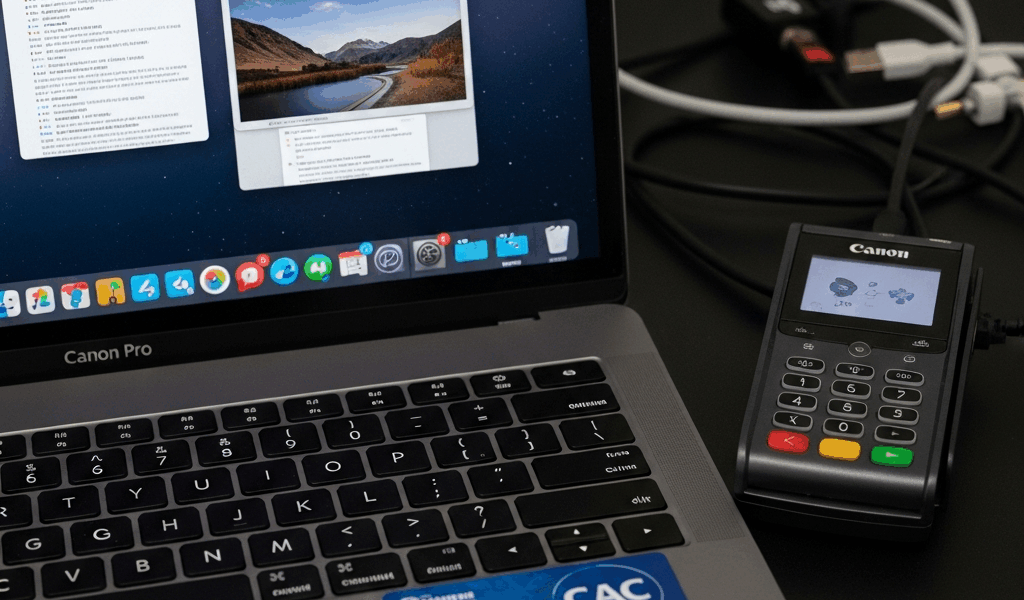
Why CAC Cards Fail Differently on Mac
CAC troubleshooting on Mac has gotten complicated with all the outdated Windows-based guides flying around. And honestly, most of them will waste your afternoon.
As someone who spent three years supporting DoD contractors, I learned everything there is to know about why macOS chokes on smart card authentication. Today, I will share it all with you.
Here’s the thing people miss immediately: it’s almost certainly not the card. Not even close. macOS handles smart cards in a completely different way than Windows does — and I mean structurally different, not just a setting or two off. There’s no native ActivClient equivalent. Your system doesn’t automatically negotiate with your CAC reader the way Windows does straight out of the box. Instead, you’re cobbling together OpenSC, Keychain, browser-level permissions, and middleware that may or may not exist on your machine.
Windows guides you’ll find online? Useless here. Completely useless. They assume ActivClient is sitting there. They assume Windows Credential Manager is babysitting your certificates. They assume middleware is already talking to the OS. On Mac, none of that is true by default.
But what is the actual problem? In essence, it’s a stack of four separate Mac-specific failures: no native ActivClient equivalent, Keychain interference with DoD root certificates, browser sandbox restrictions blocking reader access, and missing PKCS#11 modules that browsers need to talk to your card at all. Each one requires a different fix. Each one looks identical when you’re staring at a generic authentication error. That’s what makes this particular problem so maddening for Mac users.
So, without further ado, let’s dive in. This walkthrough assumes Intel or Apple Silicon running macOS 12 or later. Windows solutions won’t work here. Don’t try them.
Check Your Reader and Middleware First
Probably should have opened with this section, honestly. Before touching any software, confirm your hardware is actually visible to macOS.
Connect your CAC reader and open System Information. Click USB in the sidebar. Scroll the device tree. Your reader should appear with a specific model number — something like “Identiv uTrust 3700 F” or “SCR3310” depending on what your organization handed you. Nothing there? Try a different USB port. If you’re on a recent Mac without USB-A, borrow a different USB-C adapter and test again. A reader that doesn’t show up here isn’t communicating at all. Full stop.
Now install or verify your middleware. OpenSC is the standard PKCS#11 provider for Macs. Grab it from https://github.com/OpenSC/OpenSC/releases. Look for the .pkg file labeled for macOS — don’t grab the wrong build. Run the installer. macOS will ask you to approve the system extension under Security & Privacy. Do it.
If your organization uses Thursby’s PKard or some other proprietary middleware, install that instead of or alongside OpenSC. Different reader hardware sometimes demands different providers. I’m apparently an Identiv person and OpenSC works for me while Alcor-based readers never quite behaved on my setup. Don’t make my mistake — check your reader model first.
Open Terminal. Type this:
sc_auth list
You should see output listing your smart card reader and any currently inserted cards. Nothing there means the middleware didn’t install correctly. An error means the smart card daemon isn’t running. Restart your Mac.
Still nothing? Run this:
launchctl list | grep pcscd
That checks whether the PC/SC daemon is active. Output with a process ID means it’s running. No output means the service failed to start. Restart again.
After restart, insert your CAC. Run sc_auth list again. Now you should see your card listed.
Fix CAC Access in Safari, Chrome, and Firefox on Mac
Each browser handles smart cards completely differently on macOS. That’s what makes this endearing to us Mac users — said nobody ever.
Safari — The Native Option
Safari uses macOS’s native Keychain for certificate storage and access. Easiest path. Insert your CAC, navigate to a DoD site, and Safari should prompt you to import the certificate into Keychain automatically. Click Allow. Wait for the import — sometimes it takes 30 seconds, occasionally longer on slower machines.
If Safari skips the prompt or the import fails, open Keychain Access via Spotlight. Your CAC certificates should appear in the login keychain. Find your DoD certificate. Double-click it. Click the Trust dropdown. Set “When using this certificate” to Always Trust. Close the window. Enter your Mac password when prompted.
Try the DoD site again.
Chrome — Manual PKCS#11 Setup
Chrome doesn’t read your system Keychain automatically. You have to point Chrome directly at your smart card module — it won’t go looking on its own.
Open Chrome. Go to chrome://settings. Search “certificates.” Click Manage Certificates. Click the Smart Cards tab. Empty tab means Chrome can’t see your reader — go back and verify OpenSC installed correctly before continuing.
If the Smart Cards tab is empty after confirming OpenSC, you need to add the PKCS#11 module by hand. Navigate to chrome://settings/certificates. Click Security Keys. Click Add. Browse to /Library/OpenSC/lib/opensc-pkcs11.so. Click Open.
Chrome loads the module. Your card should now show under Smart Cards. If it still doesn’t work, your OpenSC install is probably corrupted. Uninstall it with sudo /Library/OpenSC/etc/uninstall.sh and start the installation over fresh.
Firefox — OpenSC Module in Preferences
Firefox needs the OpenSC library loaded explicitly — same general idea as Chrome, different menu path.
Open Firefox. Type about:preferences in the address bar. Search “certificates.” Click Security Devices. Click Load. Name it “OpenSC” and browse to /Library/OpenSC/lib/opensc-pkcs11.so. Click OK.
Firefox scans for your card. When you visit a CAC-protected site, you’ll be prompted to select your certificate.
Edge — The Reliable Alternative
Honestly? Edge handles CAC on Mac better than Chrome does. I’ve watched it work clean on setups where Chrome failed completely. It uses Keychain the way Safari does but with fewer sandbox headaches. While you won’t need to abandon Chrome permanently, you will need a reliable fallback — and Edge is it. If you’re stuck mid-troubleshoot, use Edge to verify your card is actually working before you keep chasing browser-specific gremlins.
Keychain Access Is Blocking Your CAC Login
This is the part that separates Mac users from everyone else. Windows never deals with this particular flavor of frustration.
macOS treats DoD root certificates with suspicion by default. Keychain will mark them untrusted even after a successful import — silently, without obvious errors. That stops Safari cold. It breaks Firefox’s certificate chain validation. It kills authentication even when your reader is recognized and your middleware is running perfectly.
Open Keychain Access. Search “DoD” to filter down to defense certificates. You’ll see several entries: DoD Root CA 2, DoD Root CA 3, DoD Root CA 4, possibly more depending on your organization’s setup.
Double-click the relevant DoD Root CA entry. Expand the Trust section. Find the dropdown labeled “When using this certificate.” It probably reads “Use System Defaults” or shows a red X. Change it to Always Trust. Enter your Mac password when the prompt appears.
Close the window. Do the same for any intermediate certificates from your organization. Then do it for your personal certificate if it’s flagged untrusted as well.
After updating all the DoD certificates, clear your browser cache completely. Safari, Chrome, and Firefox all cache certificate decisions — old decisions won’t refresh on their own, and stale cached trust states will keep failing even after you’ve fixed Keychain.
Try authentication again.
One more thing: if you spot duplicate entries in Keychain — two identical DoD Root CA 3 certificates, for example — delete the older one. That was probably left behind from a previous install. Stale duplicates confuse macOS into referencing the wrong cert at the worst possible moment. Right-click and Delete.
Still Not Working — Advanced Fixes and Last Resorts
Frustrated by all of this and still hitting a wall? You’re in decent company.
System Integrity Protection sometimes blocks OpenSC from installing correctly on Apple Silicon. Frustrated by middleware that simply refuses to seat properly on an M1 or M2 Mac, I eventually tracked it down to SIP interfering with the system extension approval. You can disable SIP temporarily — restart your Mac and hold Command+R to enter Recovery Mode, open Terminal from the Utilities menu, run csrutil disable, restart, install OpenSC, then re-enable SIP by booting Recovery again and running csrutil enable. This new workaround took off several years into Apple Silicon’s lifespan and eventually evolved into the standard approach troubleshooters know and use today.
Try a different CAC reader. Not all readers behave equally on macOS — Identiv readers generally work better than Alcor-based hardware in my experience. If your organization allows hardware swaps, borrow a different model from IT and test with it before assuming your software config is broken.
Test with a known-good CAC. If your card works on someone else’s Mac running the same setup, the card is fine and the problem lives in your software or Keychain config. If a different card fails on your Mac, something in your middleware or browser setup is broken — not the cards.
First, you should document everything you’ve already tried — at least if you want your IT help desk to actually help you efficiently. Bring the output from sc_auth list showing card recognition. Tell them which browser you’re testing in. Tell them the exact error message. This cuts support calls from two hours down to around twenty minutes. Not an exaggeration.
You’re not alone in this. Mac CAC troubleshooting is genuinely underserved compared to Windows. But this path works.


Stay in the loop
Get the latest cac setup.com updates delivered to your inbox.