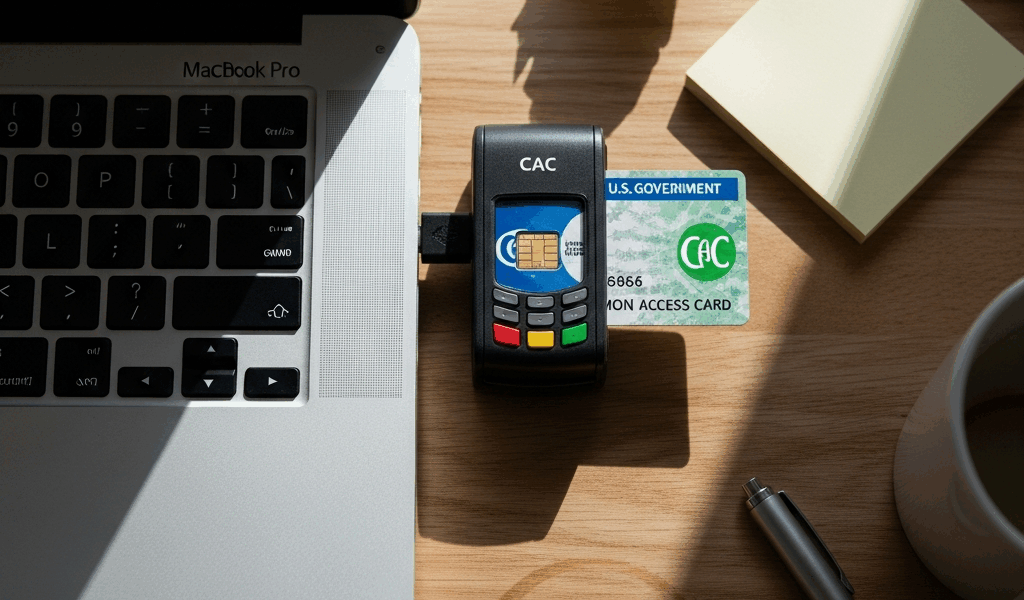
You’ve plugged in the reader, shoved your CAC in, and nothing’s happening. No certificate prompt, no login screen, maybe Windows doesn’t even know the reader is there. Before you call the help desk and sit on hold for the rest of your lunch break, work through these fixes. Nine times out of ten, CAC reader failures come down to three things: a driver that got scrambled, the Smart Card service not running, or a dirty chip. Takes about five minutes to check all three.
Check the Basics First (30 Seconds)
I know — you’ve probably already tried the obvious stuff. But humor me, because the number of times I’ve watched someone troubleshoot drivers for 20 minutes before realizing their reader was plugged into a dead USB hub is… a lot.
Try a different USB port. If you’re going through a hub or docking station, bypass it completely. Plug the reader directly into the laptop or desktop — front, back, side, doesn’t matter. Just make sure it’s a direct connection to the machine. USB hubs and docks are responsible for more CAC reader grief than anything else.
Pull the card out and put it back in. Make sure the gold chip faces the right direction and the card is fully seated. Most readers give you a slight click when the card is in right. If it feels loose or doesn’t click, try flipping the card. A surprising number of readers will physically accept the card upside down but won’t read it that way.
Check the LED on the reader. Solid green or blue typically means it sees the card. Blinking or off means it doesn’t. If there’s no light at all even without a card inserted, the reader itself might be dead or the USB port isn’t sending power.
Test the card in someone else’s reader if you can. Borrow one for 30 seconds. If your card works in their reader, the problem is your hardware. If it fails everywhere, the card is the issue.
Restart the Smart Card Service (Windows)
This single step fixes the majority of “it worked yesterday but not today” situations on Windows 10 and 11. Something about Windows Updates and sleep/wake cycles likes to quietly kill the Smart Card service.
Press Windows + R, type services.msc, hit Enter. Scroll down to Smart Card. Right-click it and pick Restart. If it shows “Stopped,” hit Start instead.
While you’re in there, look for two more: Smart Card Device Enumeration Service and Certificate Propagation. Both should be running. If either one is stopped, start it. These three services are a team — Smart Card handles the reader hardware, Device Enumeration notices when you insert a card, and Certificate Propagation grabs the certs off the card and loads them into Windows.
After restarting the services, unplug the reader, count to five, plug it back in, reinsert the CAC, and give Windows a solid 10 seconds before trying anything. It needs a moment to re-detect everything.
Update or Reinstall the Reader Drivers
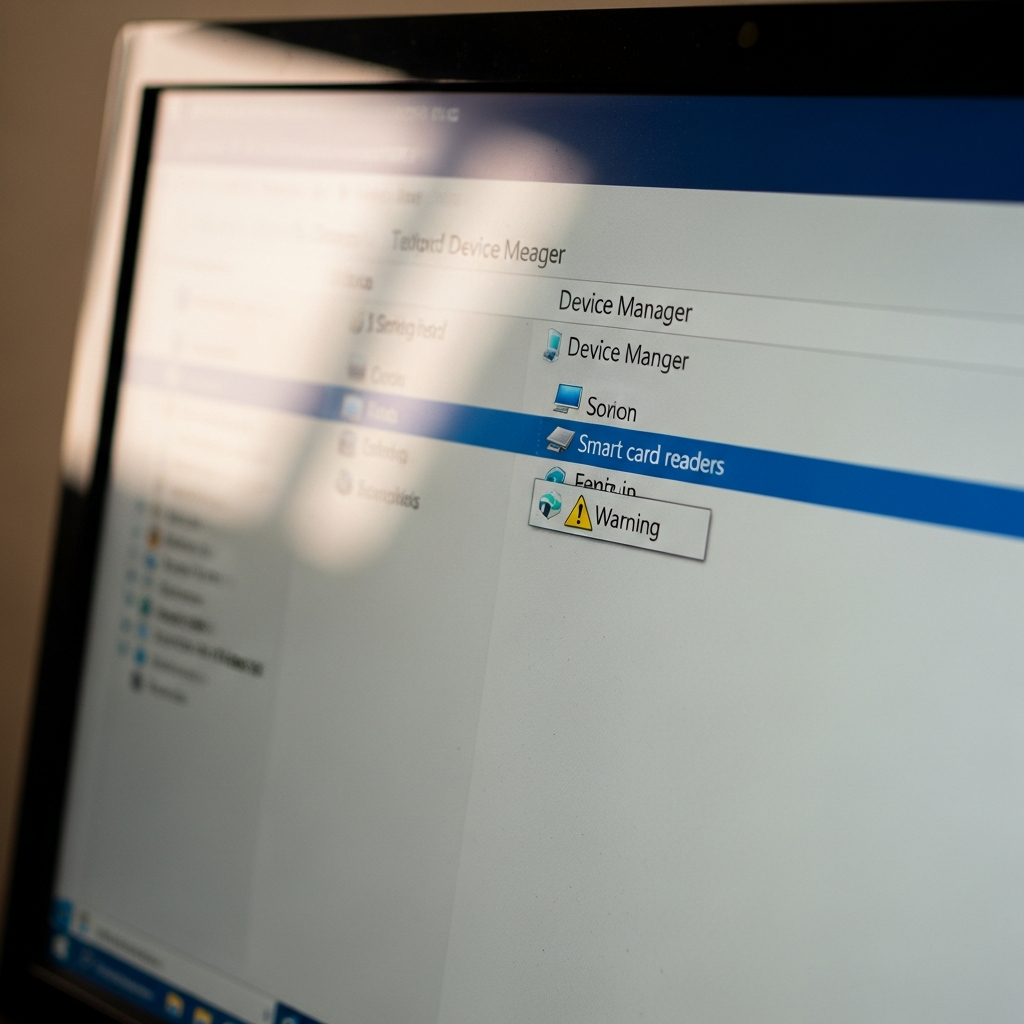
Windows 10 and 11 ship with built-in drivers for the most common CAC readers — SCR3310, SCR3500, Identiv uTrust models. Usually they just work. But Windows Update occasionally pushes a bad driver version, or a system update corrupts the existing one. Here’s the fix.
Right-click the Start button, open Device Manager. Expand Smart card readers. If your reader shows up with a yellow warning triangle, there’s your answer — driver is missing or broken.
Right-click the reader, Update driver > Search automatically for drivers. Let Windows look. If that doesn’t do it, go back and try Uninstall device — check the box that says “Delete the driver software for this device” — then unplug the reader and plug it back in. Windows will reinstall a clean copy of the driver from scratch.
Don’t see your reader under Smart card readers at all? Check Other devices or Universal Serial Bus controllers. If it shows as “Unknown device,” Windows genuinely doesn’t know what it is — you’ll need to grab the driver from the manufacturer directly.
Where to get drivers:
- SCR3310v2.0 / SCR3500 — Usually handled natively by Windows. Manual installer available on Identiv’s support page if needed.
- Identiv uTrust 2700 / 2900 — The newer readers DoD is pushing. Drivers are on Identiv’s site under “uTrust Smart Card Readers.”
- Thalès (formerly Gemalto) readers — Still common in older setups. Check the Thalès support portal.
Windows 11 Specific Issues
Windows 11 brought along a few new headaches for CAC users specifically.
Random workstation locking. Some Windows 11 builds aggressively lock the screen the instant a smart card is removed, even if nobody configured that policy. If your computer locks every time you briefly pull the card out, check Group Policy: Computer Configuration > Windows Settings > Security Settings > Local Policies > Security Options > “Interactive logon: Smart card removal behavior.” Set it to “No action” to stop the madness.
Windows Hello picking fights. If you’ve set up Hello with a PIN or fingerprint, Windows sometimes decides Hello takes priority over the smart card prompt. Your reader is working, Windows just isn’t asking for the certificate. Try turning off Windows Hello temporarily through Settings > Accounts > Sign-in options and see if the CAC login appears.
USB power management killing the reader mid-session. Windows 11 is aggressive about putting USB devices to sleep to save battery. Open Device Manager, expand Universal Serial Bus controllers, double-click each USB Root Hub, go to Power Management, and uncheck “Allow the computer to turn off this device to save power.” This keeps your reader awake.
Mac Users — CryptoTokenKit and Reader Setup
macOS Ventura, Sonoma, and Sequoia handle CAC readers through CryptoTokenKit — it’s built in, no third-party middleware required for most setups. But the system still needs to see your reader.
Plug in the reader and open Terminal. Run:
system_profiler SPSmartCardsDataTypeIf your reader and card both show up, macOS knows they’re there. If the output is empty, try a different USB port (same hub problem as Windows). If the reader appears but the card doesn’t, pull the card out and reinsert it — sometimes macOS needs a second try on initial detection.
Safari and Chrome should automatically prompt you to select a certificate when you visit a DoD site that needs smart card auth. Firefox is the exception — it maintains its own certificate store. Flip security.enterprise_roots.enabled to true in about:config and Firefox will start reading the system keychain.
Still nothing? Check System Settings > Privacy & Security > Extensions > Smart Card Extensions. Make sure CryptoTokenKit extensions are enabled — they can get toggled off by system updates.
Clean the Card Contacts
This sounds ridiculously simple, but dirty gold contacts on the chip cause a huge chunk of intermittent CAC failures. The kind where it works on the third try, or reads fine on Monday but not Tuesday, or works in one reader but not another.
The gold chip picks up finger oils, pocket lint, and general crud over time. Take a regular pencil eraser — a clean one — and gently rub the gold contacts a few times. Or use a dry microfiber cloth. Don’t use rubbing alcohol or any liquid cleaner; they can leave residue that makes the contacts worse.
If the chip contacts are visibly scratched up or have dark corrosion spots, the card probably needs replacing. Take a valid photo ID to your nearest ID card office (RAPIDS site). Replacement is free and usually takes less than 30 minutes, assuming there isn’t a line out the door.
When Nothing Works
If you’ve gone through everything above and still can’t get the reader to cooperate, a few last things to rule out:
Test with any other smart card — a PIV card, a building access card with a chip, anything. If the reader reads other cards but chokes on your CAC specifically, the CAC is the problem. Head to RAPIDS.
Check for middleware conflicts. If someone previously installed ActivClient, OpenSC, or other smart card middleware on the machine, they can fight with each other and with the built-in Windows or macOS drivers. Uninstall anything that isn’t actively needed. Modern Windows and macOS handle CAC reading natively for most operations — extra middleware often causes more problems than it solves.
Boot into Safe Mode and test. If the reader works in Safe Mode but not in normal mode, something loading at startup is interfering. Usual suspects: VPN clients, endpoint protection software, and enterprise management agents. You may need your IT team’s help to figure out which one.
And if the reader is genuinely dead — no LED whatsoever, not showing up in Device Manager on any computer, nothing — just replace it. CAC readers run about $12–15 on Amazon. The SCR3310v2.0 and Identiv uTrust 2700 R are both reliable, widely compatible, and work out of the box on Windows and Mac without extra software.

Stay in the loop
Get the latest wildlife research and conservation news delivered to your inbox.