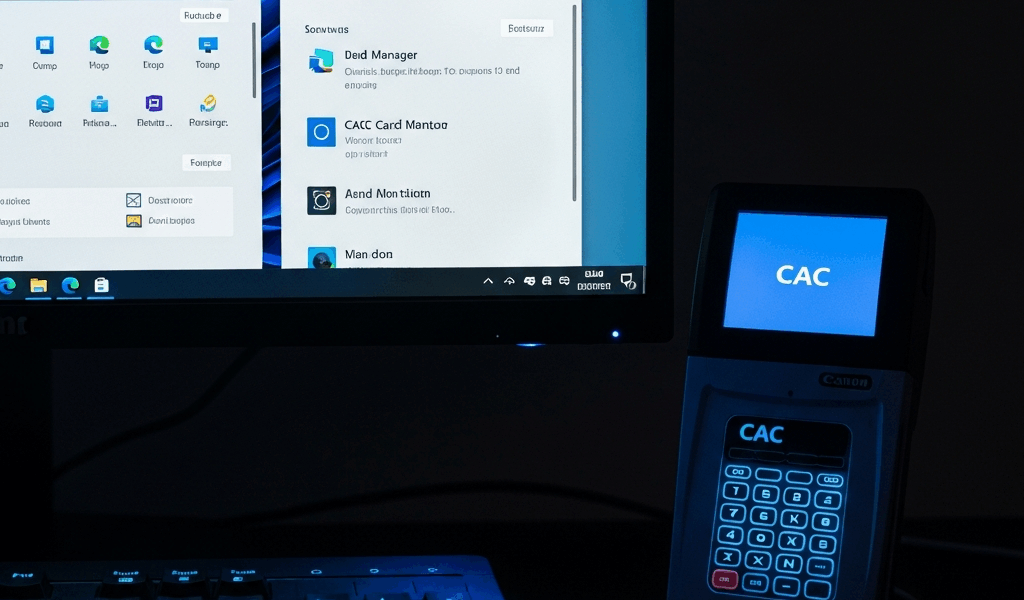
What Is CAC Middleware and Why You Need It
CAC setup on Windows 11 has gotten complicated with all the conflicting advice flying around. As someone who spent three weeks convinced my smart card reader was physically broken, I learned everything there is to know about middleware the hard way. Today, I will share it all with you.
But what is CAC middleware? In essence, it’s the software layer that sits between Windows and your actual card. But it’s much more than that. Your Common Access Card is just a chip — a physical object. Your computer has no idea what to do with it on its own. The solution has two separate pieces. Drivers handle the reader, that USB device you plug into your laptop. Middleware handles the card itself — decrypting your certificates, managing PIN prompts, and telling your browser you’re a real, verified human being.
Without it, Windows sees a card reader the same way it sees a flash drive with nothing on it. Your browser stays silent. Government portals ignore you. Email encryption refuses to cooperate. Probably should have opened with this section, honestly, because that confusion alone costs people more time than the actual installation ever does.
OpenSC vs ActivClient — Pick One Before You Start
This decision determines everything. Choose wrong and you’ll either waste an afternoon installing software your network blocks or hit permissions walls nobody warned you about. So, without further ado, let’s dive in.
OpenSC is free, open-source middleware maintained by the OpenSC Project over on GitHub. Runs on Windows 11, macOS, Linux — no license key, no support contract, no invoice. Most personal CAC users fall into this camp: contractors, reserve military, anyone running their own machine at home.
ActivClient is proprietary software from Telos. It costs money — typically $150 to $300 per license depending on your organization’s contract. That’s a real number. Many government networks, military installations, and federal agencies require it explicitly, locking down group policy specifically to block OpenSC from functioning. That’s what makes ActivClient endearing to us government IT folks, even if the price tag stings.
The decision fork is simple:
- Personal machine? No government IT management? Use OpenSC.
- Government-issued device? Corporate CAC policy? Use ActivClient.
- Unsure? Email your IT office before installing anything. Installing both creates conflicts — Windows tries running them simultaneously, certificates fail to load, the Smart Card service gets confused. I’ve watched this exact problem kill an entire afternoon of productivity. Don’t make my mistake.
Check your device management too. Open Settings → System → About. Look at the device name and whether your machine is domain-joined — a government domain shows up as an actual domain name rather than just WORKGROUP. Domain-joined machines almost always require ActivClient. That’s just the reality.
How to Install OpenSC on Windows 11
Frustrated by another failed CAC login attempt, I downloaded OpenSC directly from the official GitHub releases page using Chrome instead of hunting through package managers or third-party download sites.
Step 1: Download the installer
Go to github.com/OpenSC/OpenSC/releases. Find the latest stable release — version 0.24.0 as of this writing. Download the file called OpenSC-0.24.0.msi, the Windows 64-bit build. Skip any beta releases unless you have a specific reason to need one. Stable is what you want here.
Step 2: Run the installer
Double-click the .msi file. Windows UAC will ask permission to make changes — click Yes. The OpenSC Setup Wizard opens. Accept the license agreement. Choose “Install for all users” if you’re the administrator on this machine; “Just me” works fine otherwise. Leave the installation path at the default: C:\Program Files\OpenSC Project\OpenSC. Click Install. Give it about two minutes. Click Finish.
Step 3: Enable Windows Smart Card service
This step catches most people — at least if they skipped reading setup documentation first. Right-click Start, select Run, type services.msc, press Enter. Scroll to “Smart Card.” Not “Smart Card Device Enumeration.” Different service entirely. Double-click it. Set Startup type to Automatic. Click Apply, then Start, then OK. Close Services.
Windows 11 defaults that service to Manual, meaning it only wakes up when something specifically requests it. Some applications handle that gracefully. Others just silently fail. Setting it to Automatic means it’s running before anything asks.
Step 4: Verify the installation
Insert your CAC. Open Device Manager — right-click Start, select Device Manager. Expand Smart card readers. Your reader should appear clean, no yellow exclamation mark. A warning icon means Windows didn’t find the driver. Unplug the reader, wait 30 seconds, plug it back in.
Better test: open Command Prompt and run opensc-tool -l. Working OpenSC spits out your card details. Blank output usually means the service hasn’t started yet — wait a few seconds, run it again.
How to Install ActivClient on Windows 11
ActivClient installation requires one key difference from OpenSC: there’s no public download page. Your organization controls where you get it.
Step 1: Obtain the installer
Email your IT office or check your internal software portal. Ask specifically for ActivClient for Windows 11 64-bit. They’ll either send a download link — usually a .zip around 150 to 200 MB — or hand you credentials for an internal repository. Military users often find it at softwarerepo.dod.mil, though you’ll need an active CAC login to get in. Extract the .zip and look for something named ActivClient-Setup-8.2.exe.
Step 2: Run the installer as administrator
Right-click the .exe — specifically right-click, don’t just double-click — and select Run as administrator. UAC prompts; click Yes. The ActivClient Setup Wizard opens. Accept the license agreement, leave the installation folder at default, and work through the wizard. Plan for three to five minutes of installation time.
Step 3: Reboot immediately
ActivClient touches system drivers. Restart before you test anything. This isn’t optional — skip the reboot and the middleware won’t fully load. I’m apparently stubborn about skipping restarts and ActivClient works for me only after a proper reboot while skipping it never solves anything.
Step 4: Verify ActivClient is running
After rebooting, insert your CAC and glance at the system tray — bottom right, next to the clock. An ActivClient icon should appear, typically a green shield or card symbol. Click it. The ActivClient window opens and shows your card details, loaded certificates, and current status. Green “Card detected” message means you’re good to go.
Verify Your Middleware Is Working Correctly
Installation finished doesn’t mean installation working. Test it before you need it for something urgent.
Quick verification steps:
- Insert your CAC. Open your middleware tool — OpenSC Tool or ActivClient, depending on what you installed. Confirm your card shows detected.
- Open services.msc. Confirm the Smart Card service shows Running, not Stopped.
- Navigate to a CAC-gated site like mail.mil or a DoD PKI test page. A secured area should trigger a browser prompt asking you to select a certificate and enter your PIN — Edge, Chrome, and Firefox all handle this.
Card not detected? Reseat the reader. Swap to a different USB port. Restart the Smart Card service manually, wait 10 seconds, reinsert the card. That sequence fixes it roughly 80% of the time.
Certificates don’t show? Three wrong PIN attempts in a row locks the card. That’s not a middleware problem — call your issuing office to get it unlocked. If the PIN is fine, wait two minutes for certificates to finish loading and check again.
Browser doesn’t prompt for PIN? Close every browser window. Open Device Manager, uninstall the smart card reader entirely, reboot, reinsert the reader. Windows reinstalls the drivers fresh. Test again after that.
That’s the whole process. Middleware installed. Card detected. You’re ready to access everything your CAC unlocks on Windows 11.




Stay in the loop
Get the latest cac setup.com updates delivered to your inbox.