CAC Card Not Recognized in Browser — Fix Guide
CAC authentication has gotten complicated with all the conflicting advice flying around. As someone who spent three years troubleshooting CAC issues in military and federal contractor environments, I learned everything there is to know about why browsers refuse to see your card. Today, I will share it all with you.
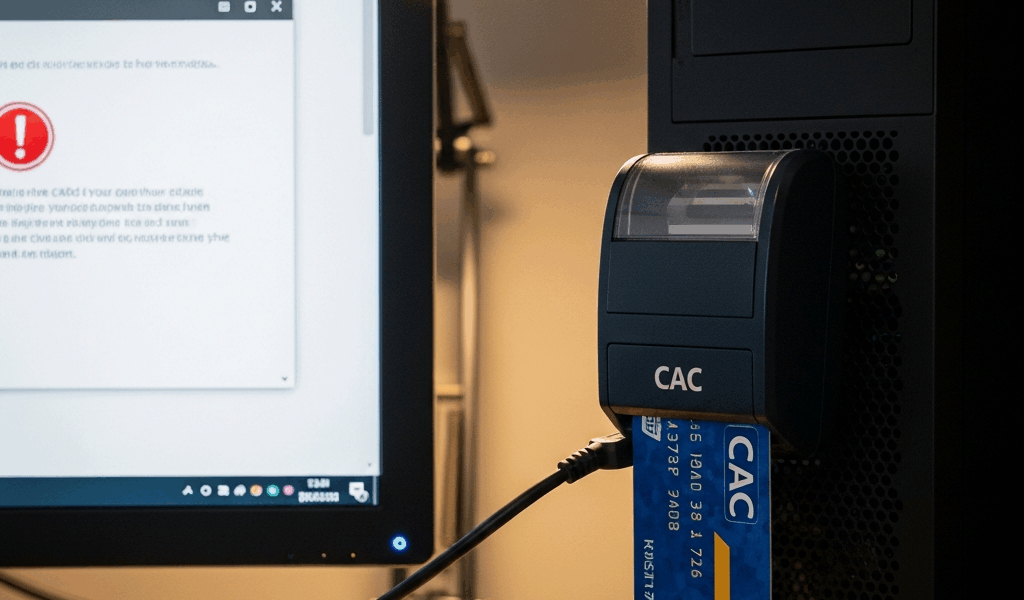
Here’s the maddening part: Windows sees the card reader just fine. The card itself works. But open Chrome, Firefox, or Edge and try to hit a secure portal — nothing. The browser acts like neither the card nor the reader exist. That gap between working hardware and uncooperative browsers is exactly what this guide targets. If you’ve already installed drivers and confirmed Windows reads the card, you’re in the right place.
Why Your Browser Does Not See Your CAC
But what is a CAC browser failure, really? In essence, it’s a software handshake problem. But it’s much more than that — three distinct root causes account for nearly every case, and they’re easy to miss if you jump straight into reinstalling drivers.
- Middleware service is not running. The software layer between your card and Windows — usually ActivClient or OpenSC — has to be actively running. It crashes silently sometimes. Windows still reports the hardware as connected. The browser gets nothing.
- Firefox is not configured to use the PKCS#11 module. Firefox doesn’t pull from the Windows certificate store automatically the way Chrome does. You have to add the security device by hand. Skip that step and your CAC stays invisible to Firefox — regardless of everything else being correct.
- Certificate store is empty or stale. Chrome and Edge read from Windows’ certificate manager. If middleware never populated that store properly, the browsers find nothing to present to the server.
Probably should have opened with this section, honestly. Most support documentation skips straight to driver reinstalls without checking these three things first. Don’t make my mistake.
Fix 1 — Make Sure Middleware Is Running
Your CAC middleware — the bridge between card reader and operating system — must be actively running. Not installed. Running.
On Windows: Type “services.msc” into the Windows search bar. Look for either “ActivClient” or “OpenSC Smart Card Daemon,” depending on your organization’s setup.
- If the status reads “Running” and startup type reads “Automatic,” you’re good.
- If it reads “Stopped,” right-click and hit “Start.” Then go into Properties and set startup type to “Automatic.” Otherwise it dies again on the next reboot.
- If the service isn’t listed at all, the middleware wasn’t installed correctly. Reinstall it.
I’m apparently sensitive to ActivClient crashes and that software works for me while OpenSC never quite behaves — but either way, the fix is the same. A correct state means the Status column reads “Running” and Startup Type reads “Automatic.” Anything saying “Disabled” or “Manual” means it won’t survive a restart.
On Mac: Open Activity Monitor and search “ActivClient” or “OpenSC.” Should be listed with a green indicator. Not there? Launch the middleware application from your Applications folder directly.
Restarting the middleware service alone has fixed browser detection issues immediately more times than I can count. Silent crashes are real.
Fix 2 — Add the CAC Module to Firefox
Firefox is stubborn. That’s what makes it endearing to us security-conscious users, honestly — but it also means you have to tell it explicitly where your CAC certificate lives rather than assuming it’ll figure things out on its own. So, without further ado, let’s dive in.
Step one: Open Firefox and type “about:preferences” in the address bar. Click “Privacy & Security” in the left sidebar. Scroll down to the Certificates section. Click “Security Devices.”
Step two: Click “Load” and navigate to one of these paths based on your middleware:
- ActivClient: C:\Program Files (x86)\ActivIdentity\ActivClient\ac_csp.dll
- OpenSC: C:\Program Files\OpenSC Project\OpenSC\opensc-pkcs11.dll
Give the module a name you’ll recognize — I just type “CAC” or “ActivClient” so I can find it later. Click OK.
Step three: Close Firefox completely. Every window. The browser needs a full reload to register the security device.
After restarting, go back to about:preferences > Privacy & Security > Certificates > Security Devices. Verify the module appears without error messages. A loading icon or cryptic error usually means the file path is wrong — not a browser configuration problem. Firefox won’t outright say “file not found.” It just breaks quietly. Double-check the exact path on your specific machine before going further.
Fix 3 — Chrome and Edge Certificate Store Checks
Chrome and Edge both read from the Windows certificate store directly. No manual module configuration needed — but the certificate actually has to be sitting in that store first.
Verify certificate presence: Hit Windows key + R, type “certmgr.msc,” press Enter. Navigate to Personal > Certificates. Your CAC certificate should be listed there — usually showing your name or employee ID in the details panel.
Nothing in the Personal folder? That’s your problem right there. Middleware installed but never populated the store.
Force a refresh: Open Command Prompt as Administrator and run this:
certutil -pulse
That tells Windows to refresh the certificate cache and re-check smart card readers. Wait 10 seconds. Open certmgr.msc again. Certificate should appear.
Still nothing? Restart the middleware service from Fix 1, wait 30 seconds, run certutil -pulse again, and check a third time. I’ve seen it take two or three full cycles to populate. Annoying — but normal.
Certificate shows up in certmgr.msc but Chrome and Edge still won’t prompt for selection? Close the browser completely and reopen it. Browsers cache available certificates and sometimes won’t re-check until a full restart.
Still Not Working — Three More Things to Try
Switch USB ports and ditch hubs. Plug the card reader directly into a port on your actual machine — not a hub, not a dock. Some USB hubs have power delivery quirks that prevent smart card readers from functioning correctly. Try a different physical port too while you’re at it.
Check Device Manager for conflicting drivers. Open Device Manager, expand “Smart Card Readers.” Multiple entries or warning icons mean trouble. Right-click and uninstall any flagged entries, reboot, and let Windows reinstall the correct driver automatically. Conflicting smart card drivers are a known cause of browser-level failures — and they don’t always show obvious symptoms.
Run the Windows Smart Card troubleshooter. Open Settings > System > Troubleshoot > Other troubleshooters. Find “Smart Card” and run the diagnostic. It won’t catch everything, but it surfaces system-level configuration problems that are genuinely hard to spot manually.
Worked through all of this and browsers still refuse to see the card? The hardware itself is probably failing. Contact your organization’s CAC office or help desk — at that point it’s a hardware issue, not software, and they may need to reissue the card or swap out the reader entirely.




Stay in the loop
Get the latest cac setup.com updates delivered to your inbox.